Turn what your AI assistant just wrote into a tracked link on your own domain
Connect slim.to to Claude, ChatGPT or Gemini over MCP, publish the document your assistant just produced as a real hosted page on your own domain, and see exactly who opened it and how long they read.
Your assistant writes you a genuinely good onboarding guide. Now share it.
Today that means: copy the text out, paste it into a doc, export a PDF, upload it somewhere, copy the URL, send the URL. Six steps, and at the end of them you have a file sitting in a folder and no idea whether anyone ever opened it.
This guide replaces all six with one sentence typed into the chat you were already having. By the end you'll have a hosted page on your own domain, behind a link you can revoke, that tells you which sections people actually read — and an assistant that can answer "did they open it yet?" without you opening a dashboard.
It takes about two minutes to set up.
How the pieces fit
slim.to speaks the Model Context Protocol, so an assistant that supports MCP can call it the same way it calls any other tool. No plugin, no copy-paste, no browser extension.
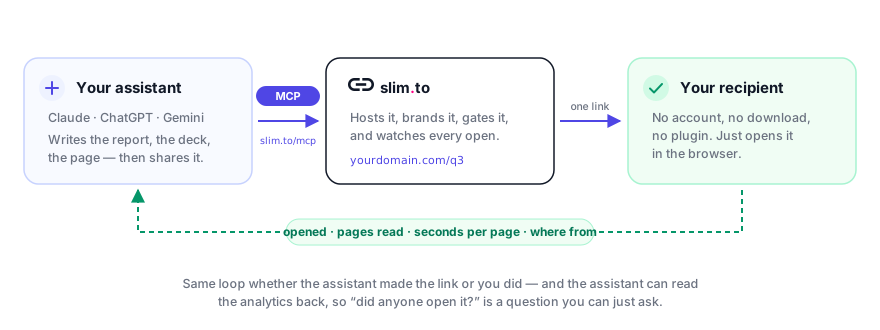
The part worth noticing is the return arrow. Most ways of sharing a file end the moment you hit send. This one keeps reporting.
Step 1 — connect slim.to to your assistant
There are two ways in, and which one you want depends on where your assistant runs.
The hosted connector (web and mobile assistants)
If you're using Claude, ChatGPT, or anything else that accepts a remote MCP server, you don't install anything.
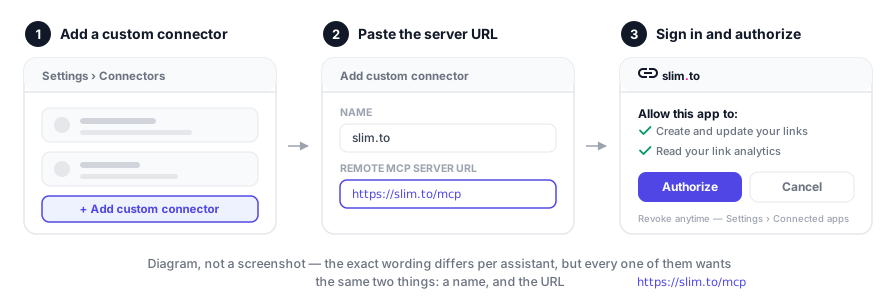
In Claude, slim.to is listed in the Connectors Directory:
- Open the slim.to listing, or search for "slim.to" under Customize → Connectors, and click Connect.
- slim.to opens its sign-in and consent page. Click Authorize.
Connect once on claude.ai and slim.to is also there in Claude Desktop, the mobile apps, and Claude Code signed in with the same account.
In ChatGPT and other assistants, add a connector with the URL
https://slim.to/mcp, then click Authorize on the slim.to consent
page.
That's it. Authorization is OAuth, so your assistant never sees a password, and you can revoke it at any time from Dashboard → Settings → Connected apps.
The local server (desktop and CLI assistants)
If your assistant runs on your machine — Claude Desktop, Claude Code, Gemini CLI — and you want it to publish files already on your disk, install the local server. It can read files off your disk, which the hosted one deliberately cannot.
For Claude Code, that's one command:
claude mcp add slimto --env SLIMTO_API_KEY=slim_your_key_here -- uvx --from /path/to/slimto/mcp slimto-mcp
For Claude Desktop, add the same thing to claude_desktop_config.json under
Settings → Developer → Edit Config:
{
  "mcpServers": {
    "slimto": {
      "command": "uvx",
      "args": ["--from", "/path/to/slimto/mcp", "slimto-mcp"],
      "env": { "SLIMTO_API_KEY": "slim_your_key_here" }
    }
  }
}
Either way you'll need a personal API key first — create one in Dashboard → Settings → API keys. It's shown once, so paste it somewhere before closing the dialog. The API keys guide covers scoping and revocation.
Which one should you pick? If you want to publish things the assistant wrote, use the hosted connector — it works on web and mobile and needs no install. If you want to publish files already sitting on your disk, use the local server, because it can upload by file path. Nothing stops you running both.
Step 2 — ask for the link
Now just ask. There is no special syntax; the assistant sees the slim.to tools and picks the right one.
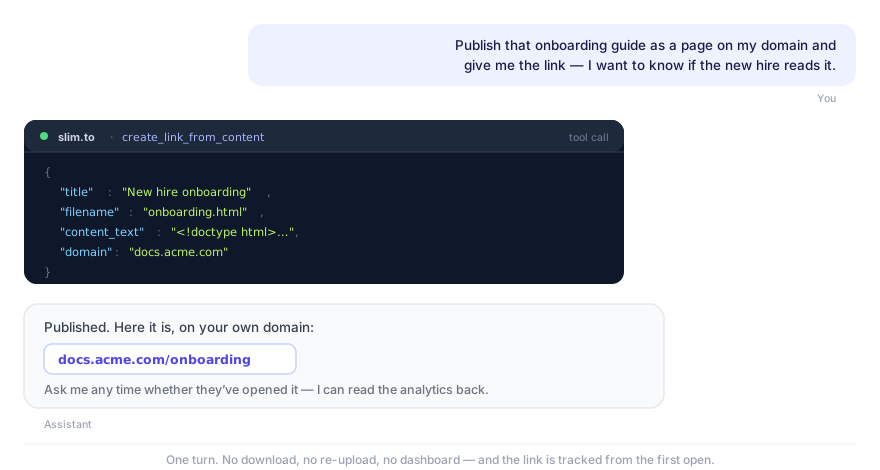
create_link_from_content and hands back a live URL — no download, no re-upload, no dashboard visit.Things that work as phrased:
- "Publish that as a page and give me the link."
- "Put it on
docs.acme.comand password-protect it." - "Shorten
https://example.com/signupwith the sluglaunch." - "Make me a link for this that expires on Friday."
The hosted server exposes these tools:
| Tool | What it does |
|---|---|
create_link_from_content |
Publish content the assistant just wrote, get a tracked link |
create_short_link |
Shorten any URL, with optional slug, password and expiry |
replace_link_content |
Swap the content behind an existing link — same URL, analytics intact |
list_links |
Your links, newest first |
get_link_analytics |
Opens, viewers, time spent, device/country/referrer |
delete_link |
Permanently remove a link (requires explicit confirmation) |
The local server swaps the two content tools for create_link_from_file and
replace_link_file, which take a path instead. Full reference in the
MCP server docs.
Putting it on your own domain
domain is just another argument, so "put it on docs.acme.com" is a thing you
can say in the sentence. The domain has to be added and verified first — add it
in Dashboard → Domains, point a CNAME at us, and we handle the TLS
certificate. After that the assistant can publish straight to it.
The result is a page on your domain, with your logo and your brand colour, and no slim.to badge if you'd rather not have one. To the recipient it doesn't look like it came from a tool.
Step 3 — find out whether anyone read it
This is the part the six-step version can't do at all.
Every slim.to link records opens. Hosted pages and PDFs go further and record per-page dwell time and scroll depth, so you get a read profile rather than a click count.
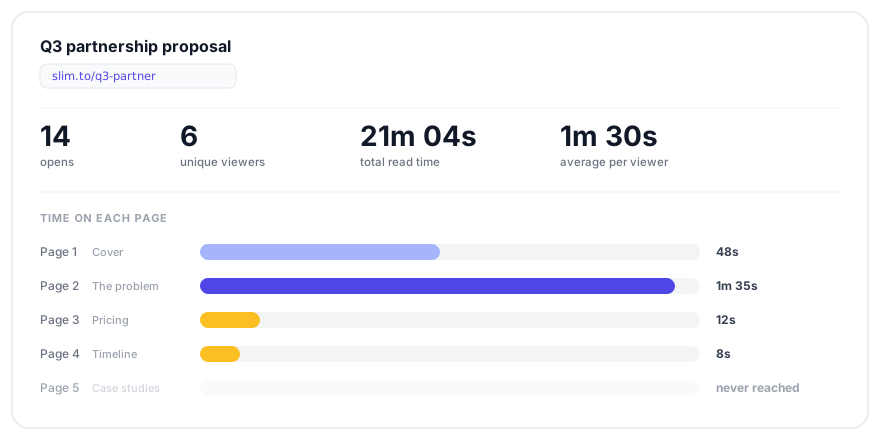
That readout tells a story a download counter never could: they read the problem statement carefully, skimmed the pricing, and gave up before the case studies. That's a follow-up email that writes itself.
You can pull it up in the dashboard, or you can just ask:
You: Has anyone opened the onboarding guide?
Assistant: (calls
get_link_analytics) Six people, fourteen opens. Most of the time went to the second page. Nobody has reached page five.
Alongside the read profile you get open notifications in real time — by email, by webhook, or as a Slack message — plus device, country and referrer for every session.
Updating without breaking the link
You shared the guide. The assistant found a mistake. Do not publish a new link — the old URL is already in three inboxes.
Ask for a replacement instead:
"Fix the typo on page two and update the link I already sent."
The assistant calls replace_link_content, which swaps the file behind the
existing link. Same URL, same slug, same domain, same password, and the
analytics history survives. Everyone holding the old link now sees the new
version.
This is the single most useful habit to build. Minting a fresh link every time you fix a typo is how you end up with five versions in circulation and no idea which one anyone read.
When the document is big
Content the assistant writes has to be generated token by token, which is slow for anything large and can be cut short by tool-call size limits. slim.to gives the assistant three ways to deal with that.
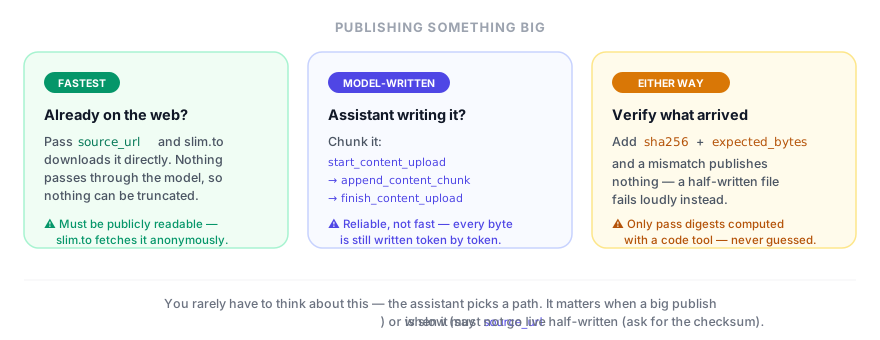
In order of preference:
source_url— if the content is already at a publicly readable URL, slim.to downloads it server-side. Nothing passes through the model, so nothing can be truncated, and it's by far the fastest path. The catch is in the word publicly: slim.to fetches it as an anonymous visitor, so a login-gated or unshared URL won't work.- Chunked upload —
start_content_upload→append_content_chunk→finish_content_upload. Parts are reassembled server-side in order, and a missing part blocks publication rather than producing a truncated file. This makes a big upload reliable, not fast. sha256andexpected_bytes— an integrity check on either path. If what arrives doesn't match, slim.to publishes nothing. Only useful if the values were computed programmatically; a guessed digest can never match and will just block the publish.
You rarely have to think about any of this. It's worth knowing so that when a large publish is crawling, you can say "the file's already at this URL, use that" and watch it finish instantly.
Locking it down
Everything you can set in the dashboard, you can ask for in the sentence:
- Password —
passwordon create, or "password-protect it with hunter2". - Expiry —
expires_at, or "make it stop working after Friday". - Custom slug —
slug, or "use the slug q3-review".
Access control that needs more thought — email gates, allowed domains, approval requests, view caps — lives in the link's config page in the dashboard. A reasonable split: let the assistant create and update, and set the sensitive gates yourself. See password-protect, expire and revoke a link you already sent for how those interact.
If something goes wrong
| What you see | What's happening |
|---|---|
| The assistant says it has no slim.to tools | The connector isn't authorized, or the client needs a restart. |
401 Invalid or revoked API key |
The key was revoked or mistyped. Create a fresh one. |
403 Plan limit reached |
You're at the free plan's five active links. Delete one or upgrade. |
429 Rate limit exceeded |
More than 120 requests in a minute on one key. |
File type not supported |
Allowed: PDF, PNG, JPG, JPEG, GIF, HTML, ZIP, MP4, and Office files (DOCX, PPTX, XLSX and their legacy formats). |
| A large publish never finishes | Point the assistant at a public URL with source_url, or ask it to chunk the upload. |
SLIMTO_API_KEY is not set |
Local server only — the env block isn't reaching the server. Check the client config and restart. |
Where to go next
The setup is a one-time cost and the habit is what pays. Once your assistant can publish, "send me that as a link" becomes a complete instruction, and "did they read it?" becomes a question with an actual answer.
- MCP server reference — every tool, argument and env var
- Use with Claude · with OpenAI · with Gemini
- REST API quickstart — if you'd rather drive it from a script than a chat
- Tracked links for AI agents — the same idea, for agents that run without a human in the loop
Keep reading
-
One prompt, six landing pages — and a way to tell which one is working
We asked Claude for a landing page per audience — sales, fundraising, design, PR,...
-
“Make me a newspaper” — publishing a web page straight from a chat
What it actually looks like to ask an assistant for a web page, get a live URL on your...
-
Tracked links for AI agents
An agent that produces a report has nowhere to put it. Give it an API key or an MCP...